How to Invert Colors on iPhone and Android — Photo Editing Without an App
Two completely different tools solve two completely different problems here, and mixing them up wastes your time. Your phone’s accessibility settings invert your entire screen in real time. They were never built to edit one photo. Here’s exactly how to use both correctly, and why screenshotting an inverted screen is the wrong way to invert an image.
iPhone: Native Invert Colors (Accessibility)
Apple ships two distinct invert modes, and picking the wrong one breaks your photos:
- Open Settings → Accessibility → Display & Text Size
- Scroll to Invert Colors — you’ll see two toggles: Smart Invert and Classic Invert
- Smart Invert flips your UI and light-mode apps but detects images, video, and dark-themed apps and leaves them alone — this is the one to use for general screen readability
- Classic Invert flips everything, including photos and video, with no exceptions — colors in images come out visually wrong, not artistically inverted
For faster access, set up Accessibility Shortcut: Settings → Accessibility → Accessibility Shortcut → select Invert Colors → now triple-clicking the side button toggles it instantly without digging through menus.
Android: Native Color Inversion
The exact path depends on your manufacturer’s skin:
Stock Android / Pixel:
- Settings → Accessibility → Display size and text (or Color and motion, depending on version)
- Tap Color inversion
- Toggle on — this inverts the entire display, system-wide
Samsung (One UI):
- Settings → Accessibility → Visibility enhancements
- Tap Negative colors
- Toggle on
Both do the same job as iOS Classic Invert — full-screen, no image detection, no exceptions.
The Screenshot Mistake
Here’s the friction point almost everyone hits: you invert your screen, open a photo, take a screenshot, then crop it — expecting a clean color-inverted image. Three things go wrong:
- Status bar and navigation UI get captured too, forcing a manual crop on every single image
- True Tone (iOS) or adaptive display filters (Android) layer their own color-temperature shift on top of the inversion, so your “inverted” image often comes out with a visible color cast that isn’t present in the actual inverted RGB values
- Screenshot compression re-encodes the image, so you’re not working with the original file’s actual color data anymore — just a re-compressed photo of your inverted screen
None of this is a real image inversion. It’s a screenshot of your display pretending to be an edited file.
Inverting Just One Image — The Actual Fix
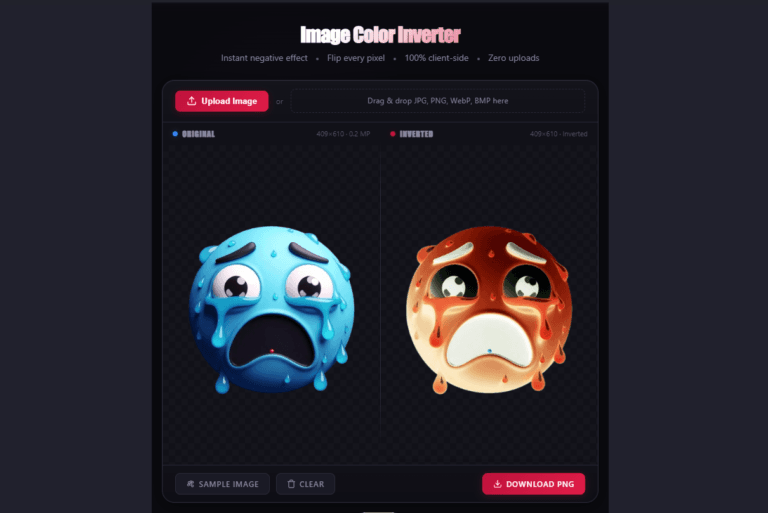
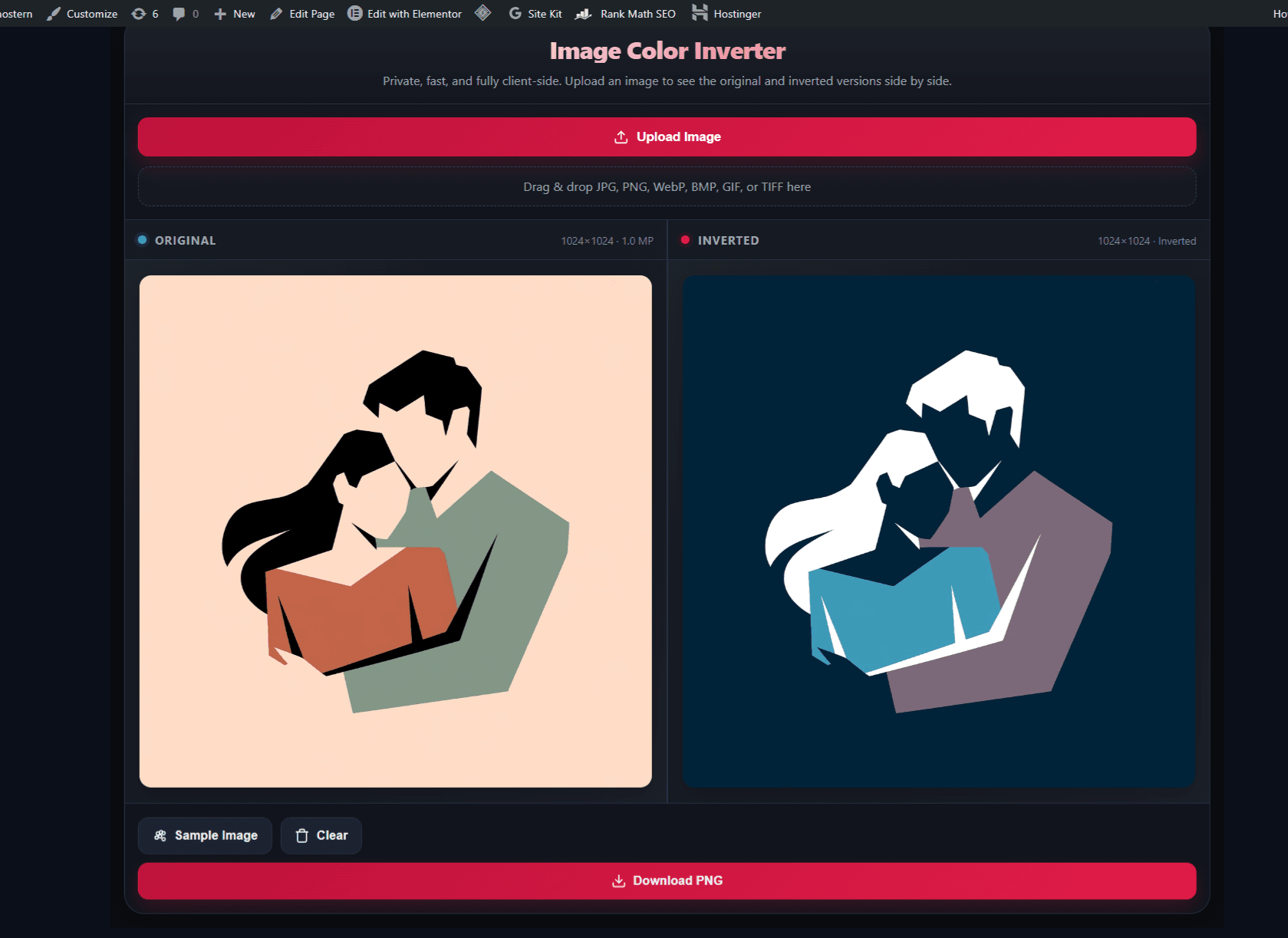
If you need one specific image inverted — a meme template, a design asset, a thumbnail — without touching your phone’s display settings at all, that’s a single-file operation, not a screen setting. The Image Color Inverter runs entirely in your mobile browser: upload the photo, it inverts the actual pixel data of that one file, download the result. No accessibility toggle to remember to turn back off, no status bar in your output, no compression artifacts from a screenshot pipeline — you get the original resolution, correctly inverted, nothing else touched.
This works identically on iPhone Safari and Android Chrome — no app install required, which matters if you just need a one-off edit and don’t want a permanent app taking up storage for something you’ll use twice.
When You’d Actually Want Each Method
| Situation | Use This |
|---|---|
| Reading your whole screen more comfortably (accessibility need) | Native OS Invert Colors |
| Reducing eye strain in a dark room, system-wide | Native OS Invert Colors |
| Inverting one photo for a meme, thumbnail, or design asset | Image Color Inverter tool |
| Need the output as a clean downloadable file | Image Color Inverter tool |
| Don’t want to touch phone accessibility settings at all | Image Color Inverter tool |
Pairing It With Text Effects
If the inverted image is going into a meme, aesthetic post, or Discord banner, the Vaporwave Text Generator produces full-width Unicode text that pastes cleanly over an inverted-color background — no font installation, works directly in the same mobile browser tab.
Key Takeaway Checklist
| Check | Correct Answer |
|---|---|
| Want to invert your whole screen for readability? | iOS: Smart Invert. Android: Color inversion / Negative colors |
| Want colors in photos to stay normal while everything else inverts? | iOS Smart Invert only — Classic Invert affects photos too |
| Need to invert just one image file? | Use the Image Color Inverter tool, not a screenshot |
| Screenshotting an inverted screen a reliable edit method? | No — captures UI chrome and re-compresses the file |
| Works without installing an app? | Yes — both the OS toggle and the Ghostern tool are app-free |
Written by Sharjeel — Lead Developer & Founder of Ghostern, software engineer who built and tested the Image Color Inverter across iOS Safari and Android Chrome before publishing this comparison. Read my full story →
Disclaimer: Menu paths for iOS and Android accessibility settings may shift slightly between OS versions and device manufacturers. Verify against your specific device’s current settings menu if a step doesn’t match exactly what you see.