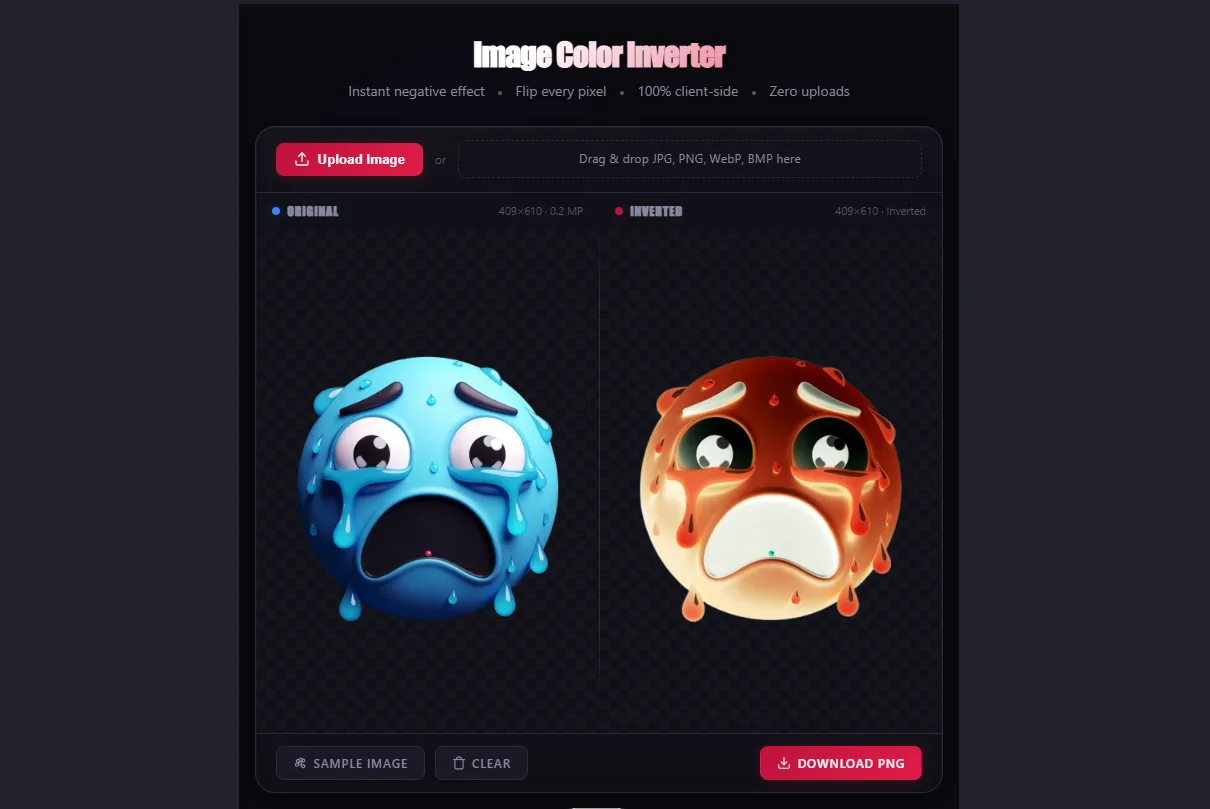
How to Make a Photo Negative Effect Online — Without Photoshop
A true film negative isn’t just inverted RGB values — it has an orange-amber base tint baked into the chemical process, which is why a straight digital invert never looks quite like real analog film. Here’s the actual color theory behind the effect, and how to get either the pure digital negative or the warmer analog‑style look, both without opening an editor.
Why Inverted Photos Look “Wrong” on Skin Tones
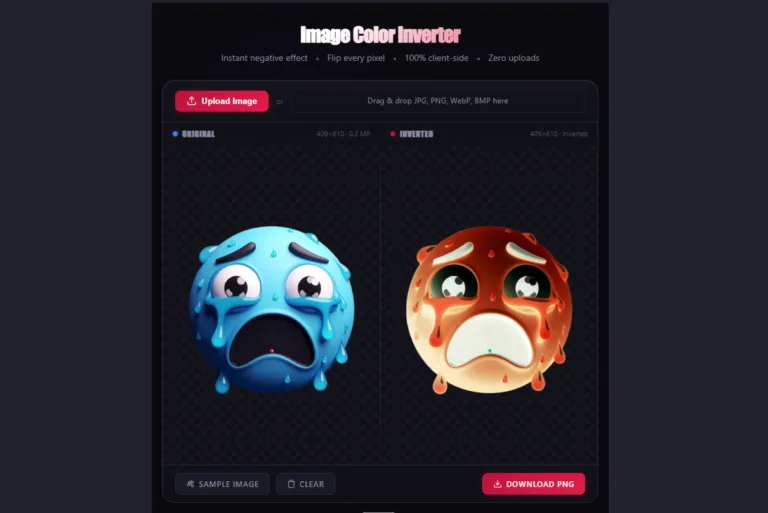
This is the detail most negative‑effect tutorials skip: human skin is dominant in red/orange wavelengths. Invert those values (subtract each RGB channel from 255) and skin turns cyan‑teal — not a random glitch, a direct consequence of the color wheel. Red’s complementary color is cyan; invert red‑heavy skin tones and cyan is exactly what you get.
This is why inverted portraits have that distinct sci‑fi/alien look, and why the effect reads as “digital negative” rather than “old film” — real film negatives shift toward orange‑brown, not cyan, because of the dye layer built into the film stock itself.
Pure Digital Negative vs. Film‑Style Negative
| Effect Type | What Happens | Best For |
|---|---|---|
| Pure RGB inversion | Every channel (R, G, B) subtracted from 255 exactly | Glitch aesthetic, thumbnails, alien/sci‑fi portrait effect |
| Film‑style negative | RGB inverted, then a warm amber/orange tint layered back in | Vintage/analog photography look |
| Grayscale negative | Convert to black & white first, then invert | Classic darkroom negative look, no color shift artifacts |
The tool‑based route below only produces the pure RGB inversion — if you want the amber‑tinted analog look, invert first, then apply a warm color overlay afterward in whatever platform you’re posting to (most social apps have a basic warmth/temperature slider built into their native editor).
Step‑by‑Step: Digital Negative Effect
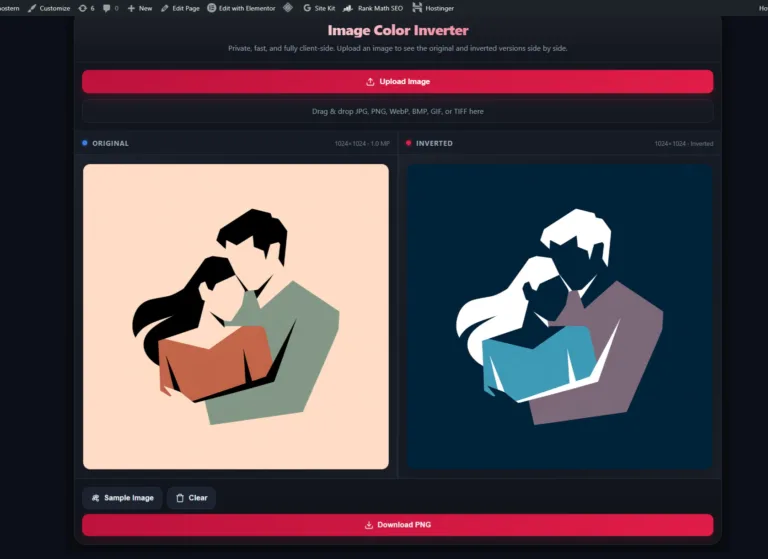
- Open the Image Color Inverter in any browser — desktop or mobile.
- Upload your photo (supports JPG, PNG, WebP, BMP, GIF).
- The tool inverts every pixel’s RGB value instantly — no upload wait, no account, processed client‑side in your browser.
- Download the result as a PNG.
That’s the entire pure‑negative workflow. No layer masks, no manual channel adjustments, no Photoshop needed.
Common Mistakes With Negative‑Effect Photos
- Inverting a photo that’s already color‑graded or filtered. If your original photo has a heavy warm filter applied, the inverted result inherits that filter’s shift too — invert the original unedited photo, not a version you already ran through a filter app.
- Expecting a grayscale negative from a color photo. Color photos invert to color negatives (with the cyan skin‑tone shift above), not black‑and‑white. Convert to grayscale first if you specifically want the classic black‑and‑white darkroom look.
- Not accounting for transparency. PNG files with an alpha channel keep their transparency after inversion — the visible pixels invert, the transparent areas stay transparent. This is usually what you want, but it surprises people expecting the transparent areas to turn solid black (transparency isn’t a color value, so there’s nothing for the invert to act on there).
Using the Effect Creatively
- Album art and thumbnails — the cyan‑skin‑tone shift reads as intentional “alternate universe” styling rather than a mistake, when used deliberately on portrait shots.
- Before/after social posts — post the original and inverted version side by side; the color‑theory explanation above makes for genuinely interesting caption content, not just a filter dump.
- Glitch‑aesthetic Discord banners — pair an inverted image with the Vaporwave Text Generator for full‑width Unicode text overlay — the aesthetic language of both effects matches (high‑contrast, slightly “wrong” color, deliberately digital).
Key Takeaway Checklist
| Check | Correct Answer |
|---|---|
| Why do inverted skin tones look cyan? | Red is skin’s dominant channel; cyan is red’s exact complementary color |
| Does inverting give a real film‑negative look? | No — real film has an amber base tint; pure RGB inversion is cooler/cyan‑shifted |
| Want the classic black‑and‑white darkroom negative? | Convert to grayscale first, then invert |
| Does inverting affect transparent PNG areas? | No — transparency is preserved, only visible pixels invert |
| Invert an already‑filtered photo? | Invert the original unedited file instead, or the filter’s color shift carries through |
Written by Sharjeel — Lead Developer & Founder of Ghostern, software engineer who built the Image Color Inverter and tested the RGB math behind the negative effect on real portrait and landscape photography before publishing this breakdown. Read my full story →
Disclaimer: Color theory explanations in this guide describe general RGB inversion behavior and typical human skin‑tone wavelength dominance — individual photo results vary based on lighting, original color grading, and camera sensor characteristics.
![A high-contrast video thumbnail for a 'Clan Tag Generator' tool, set against a futuristic, dark tech background. The text '[YOUR TAG HERE]' is prominently displayed in a sleek, glowing blue box, with a large orange arrow pointing to a box on the right listing example tags like '[GRUNT]', '[SNIPE]', and '[VIP]'. A small 'FREE!' badge is in the top-left corner, and a button below the examples reads 'INSTANT GENERATION'.](https://ghostern.com/wp-content/uploads/2026/07/Clan-Tag-Generator-Create-Unique-Tags-Instantly-768x429.png.webp)