
Minecraft Sphere Generator
Professional Voxel Blueprint, Dome & Ellipsoid Architect
Copy command block codes to build your sphere instantly in Java or Bedrock Edition!
By Sharjeel, Developer & Maintainer of Ghostern Tools. Updated September 2026.
Minecraft Sphere Generator is a browser-based voxel planner that builds spheres, ellipsoids, and domes on Minecraft’s block grid. Set independent radii, choose hollow or solid, track your build progress layer by layer, and export the result as commands, a datapack file, or JSON block data.
What Is a Minecraft Sphere?
A sphere in Minecraft is an approximation — the game’s blocks sit on a fixed grid, so a true mathematical sphere gets converted into a voxelized version where each block is either fully inside or fully outside the curve. The generator does this test for every block position in the bounding volume, then keeps the ones inside — this is the same underlying math whether you’re generating a full sphere, a stretched ellipsoid, or a dome (which is simply the sphere with everything below its equator cut away).
What This Sphere Generator Does
- Three shape modes — Sphere, Ellipsoid, and Dome, switchable instantly.
- Independent X/Y/Z radius sliders (2–64 each) with a lock toggle — locked keeps all three equal for a true sphere; unlocked lets you stretch any axis independently for an ellipsoid.
- Center alignment control — choose whether the shape centers on a single block or a 2×2 block cluster (see below for why this matters).
- Hollow Shell toggle for an empty-interior shell instead of a solid fill.
- 10 preview materials — Stone, Quartz, Glass, Emerald, Diamond, Gold, Obsidian, Redstone, Concrete, and Netherite.
- Three view modes — 2D Layer View, 3D Voxel View, and a Split View showing both at once.
- 3D display sub-modes — view the Full Sphere, just the Active Layer in isolation, or a Ghost view that highlights the current layer in a different color within the full model.
- Layer-by-layer navigation with a “Mark Done” button per layer and a build-progress bar tracking how many layers you’ve completed.
- Resource Estimator — total blocks, blocks in the current layer, full 64-block stacks plus remainder, and a double-chest estimate.
- Exports — download a PNG of the current 2D layer or 3D view, copy summary stats as text, copy commands for the current layer or the full build, download a
.mcfunctionfile, or export the raw block data as JSON.
How to Use the Sphere Generator
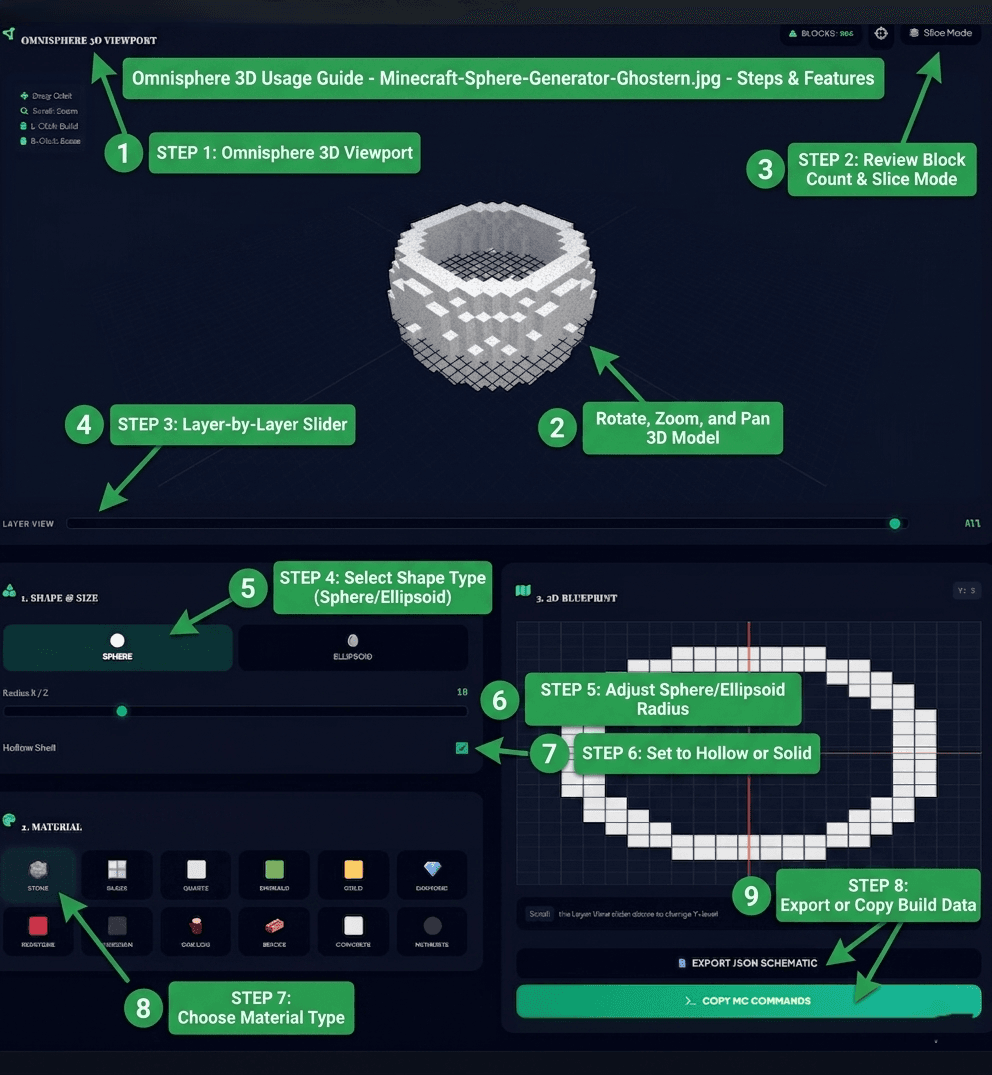
- Choose a shape. Sphere for a perfect round shape, Ellipsoid for a stretched form, or Dome for a half-sphere roof.
- Set the radii. With the lock engaged, one slider controls all three axes for a true sphere. Unlock it to set X, Y, and Z independently for an ellipsoid.
- Choose a center alignment. Odd gives you a single center block; Even gives you a 2×2 center cluster — see the section below for which to pick.
- Toggle Hollow Shell for an empty interior, or leave it off for a solid fill.
- Pick a material from the 10 available blocks — the preview updates instantly.
- Choose a view. Use 2D Layer View for a flat blueprint, 3D Voxel View to orbit the full model, or Split View for both side by side.
- In 3D, pick a display mode — Full Sphere, Active Layer Only, or Ghost, which highlights your current layer inside the full model so you can see where it sits.
- Step through layers with the Up/Down buttons or the layer slider, and click Mark Done as you complete each one — the progress bar tracks your build.
- Check the Resource Estimator for total blocks, stacks, and a double-chest estimate before you start gathering materials.
- Export. Copy the current layer’s commands, copy the full build, download a
.mcfunctionfile, export JSON block data, or save a PNG of your current view.
Understanding Center Alignment: Odd vs. Even
This is the setting most sphere generators don’t give you a choice about, and it changes the shape more than you’d expect. Odd alignment centers the sphere on a single block, so the whole structure is symmetric around one exact center point — this is usually what you want for a classic, evenly-proportioned sphere. Even alignment centers on a 2×2 cluster of blocks instead of one, which shifts how the rounding falls at each radius and can produce a slightly different silhouette, particularly at smaller sizes. If a sphere’s proportions look a little off at first, try switching alignment before changing the radius — it’s often the actual fix.
Sphere, Ellipsoid, and Dome Modes
- 🔵 Sphere: equal radius on all three axes — the shape for observatories, globes, and any build that needs to look uniformly round from every angle.
- 🥚 Ellipsoid: unlock the radii and set the Y axis differently from X/Z for a stretched, egg-like or flattened form — useful for organic shapes, blimps, or fitting a round structure into a specific footprint.
- ⛺ Dome: the top half of a sphere, generated by cutting everything below the equator. This is the fastest way to get a half-sphere roof without needing a separate tool.
Hollow vs. Solid Spheres
Hollow generates the outer shell only and is almost always the practical choice — a solid sphere at any real size uses vastly more material for volume nobody will see once the shell is closed. Solid is worth using for terrain shaping, decorative filled masses, or any build where the interior genuinely needs to contain blocks.
Reading the Resource Estimator
The estimator shows your total block count, the block count for whichever layer you’re currently viewing, how many full 64-block stacks that adds up to (with the remainder shown separately), and a double-chest estimate. A Minecraft double chest holds 54 stacking slots at 64 items each — so the double-chest figure is your total block count divided by 3,456, giving you a realistic sense of how much chest storage to set aside before you start gathering materials.
Tracking Your Build
As you complete each layer in-game, click Mark Done while that layer is active in the tool. The progress bar and percentage update immediately, so you always know how far through the build you are and which layer to pick up on if you take a break. This progress is tracked in your browser for the current session — it isn’t saved to an account, since there isn’t one.
Material Choices
- Glass — observatories, greenhouses, and see-through domes.
- Quartz or Concrete — clean, modern spherical structures and sci-fi bases.
- Stone — general-purpose builds, fortresses, and underground bases.
- Obsidian — dark fantasy, defensive, or Nether-themed spheres.
- Emerald, Diamond, or Gold — fantasy orbs and RPG-server landmarks where the sphere itself is meant to stand out.
- Redstone — decorative accents or redstone-themed builds where color matters more than function.
- Netherite — a heavy, dark-toned alternative to obsidian for imposing structures.
Popular Uses for Spheres, Ellipsoids, and Domes
More Minecraft Tools from Ghostern
Frequently Asked Questions
❓ How do I make a hollow sphere in Minecraft?
Enable the “Hollow Shell” toggle. The generator recalculates the shape as an outer shell only, leaving the interior empty — useful for saving materials on large builds like biodomes or bases.
❓ What’s the difference between Odd and Even center alignment?
Odd centers the sphere on a single block for a classic, evenly-symmetric shape. Even centers it on a 2×2 block cluster instead, which shifts the rounding slightly and can look different at smaller radii. Try switching this before adjusting the radius if a shape’s proportions look off.
❓ Does this work for both Java and Bedrock Edition?
Yes. The exported /setblock commands are standard syntax that work in both editions. Java players can also download a ready-to-use .mcfunction file for datapacks.
❓ How many blocks do I need to build a sphere?
The Resource Estimator calculates this automatically as you adjust the size — total block count, how many 64-block stacks that equals, and a double-chest estimate based on a double chest’s 54-slot, 64-per-slot capacity.
❓ What’s the difference between a sphere and a dome in this tool?
A sphere is the full round shape. Dome mode generates the same shape but cuts away everything below the equator, leaving a hemisphere — useful for roofs and canopies without needing a separate tool.
❓ Can I track my progress while building?
Yes — click “Mark Done” on each layer as you complete it in-game. The progress bar updates to show how much of the build is finished. This is tracked for your current session in the browser, not saved to an account.
❓ Can I export an image of my sphere?
Yes. The Export PNG button saves either the current 2D layer view or the current 3D view, depending on which one is active when you click it.
📅 Last updated: September 2026 | Tool by Ghostern — independent creator, not affiliated with Mojang or Microsoft.