Advanced Image Color Inversion Techniques for Better Digital Edits
By Sharjeel
Published: 2026-02-08
Flipping the colors in a photo can completely change its mood. A bright sunset can turn into a cool, mysterious scene. Warm tones become cold, and familiar images suddenly feel new. This is the power of advanced image color inversion — a simple technique that helps designers and creators add depth and emotion to their work.
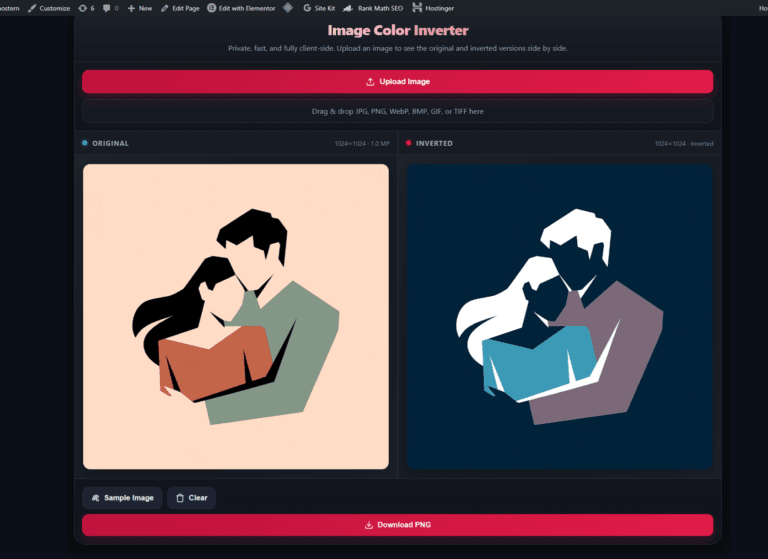
Tools like Ghostern’s Image Color Inverter make the process easy. You can reverse colors while keeping important details intact, so the focus stays on the story your image tells. Inversion is not just about reversing colors. It’s about discovering new visual possibilities.
TL;DR
Use advanced image color inversion techniques with free tools to quickly transform your images and add emotional depth to your designs.
How to Use an Image Color Inversion Tool
- Upload your image to the tool.
- Click “Invert Colors.”
- Review the result.
- Adjust settings if needed.
- Download the final image.
The change happens instantly. Warm colors shift to cooler tones, creating a completely different atmosphere.
Best Practices for Better Results
- Keep the main subject clear so important details don’t get lost after inversion.
- Adjust contrast and saturation after inverting if the image looks flat.
- Choose the right format when exporting:
- PNG for images that need transparency
- JPEG or WebP for smaller file sizes
Export Tips
- Use WebP when possible for better quality at smaller sizes
- Keep quality between 80–90% for a good balance
- Always preview the final result before downloading
Limitations
Most modern browsers handle the tool well. On older devices, large high-resolution images may load more slowly. Inverted colors can improve contrast for some users, but it’s still good to check readability.
Creative Ideas to Try
- Invert a grayscale photo to create a film-negative style effect.
- Combine inversion with gradients for abstract designs.
- Create a “night mode” version of daytime photos.
- Use partial inversion to highlight specific parts of an image.
- Layer inverted and normal versions for unique visual effects.
FAQs
What makes color inversion techniques advanced?
They go beyond a basic flip by allowing better control over mood, contrast, and selective changes.
Can I use this on mobile?
Yes. The tool works on modern mobile browsers, though editing on a larger screen can make fine adjustments easier.
How do I stop colors from looking washed out?
Increase contrast before inverting, then fine-tune saturation afterward.
Are there free tools for beginners?
Yes. Ghostern’s Image Color Inverter is free, simple, and requires no signup.
What if the inverted image changes the mood too much?
That’s normal. Just undo, adjust, and try again until you get the look you want.
Why This Matters
In a world full of similar-looking images, small techniques like color inversion help your work stand out. A simple flip can reveal a completely different mood and make people stop and look longer.
About the Author
Sharjeel is the developer and founder of Ghostern. He builds free browser-based tools for creators and gamers.
Try the Free Image Color Inverter
Want to apply an inversion instead of following the manual techniques? Open the Ghostern Image Color Inverter to preview an inverted image in your browser. For mobile-specific steps, see our guide to creating a photo negative effect online. If you are changing the whole phone display rather than editing a file, read our guide to inverting colors on iPhone and Android.
For phone-specific accessibility settings, see our guide to inverting colors on iPhone and Android. If you want the classic film look instead, follow the photo negative effect tutorial.