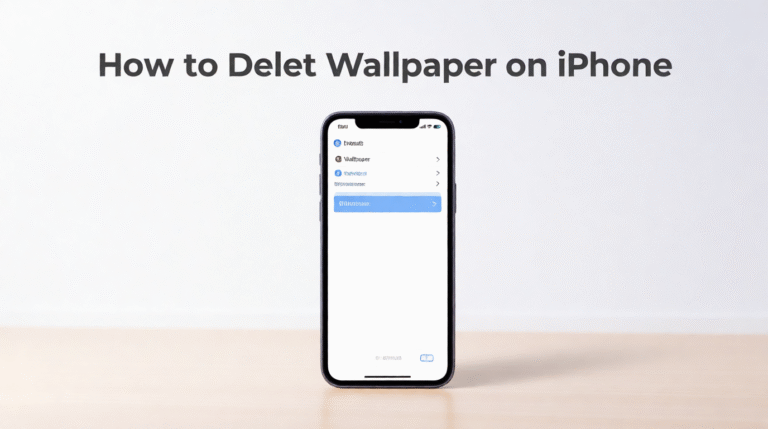
I still remember how confusing it felt the first time I wanted to remove a wallpaper on my iPhone. I expected a clear “delete” button, but instead I found myself swiping, tapping, and second-guessing every step. In my experience, Apple keeps things minimal, which is great—until you want to clean up old wallpapers and can’t find the option. This guide explains the exact way to delete wallpapers on an iPhone, without frustration.
Why iPhone Wallpapers Don’t Have a Clear “Delete” Button
Apple treats wallpapers as part of the lock screen experience, not as separate files. That’s why you won’t see a traditional delete option like you would for photos. Once I understood this, everything made more sense—the wallpaper is removed by deleting the lock screen setup, not the image itself.
How to Delete a Wallpaper from iPhone Lock Screen
This method works on iPhones running iOS 16 and later.
- Wake your iPhone and long-press on the Lock Screen.
- Swipe left or right to find the wallpaper you want to remove.
- Swipe up on the wallpaper preview.
- Tap the trash bin icon that appears.
- Confirm by tapping Delete This Wallpaper.
In my experience, this is the fastest and cleanest way to remove unused wallpapers, especially if you’ve created multiple lock screen styles.
How to Remove a Wallpaper Using Settings
If you prefer using the Settings app:
- Open Settings
- Go to Wallpaper
- Tap Customize under Lock Screen
- Select the wallpaper you no longer want
- Swipe up and tap the delete icon
This approach is helpful if you’re already adjusting fonts, widgets, or lock screen effects.
How to Delete a Wallpaper Image Completely
If the wallpaper came from your Photos app, deleting the lock screen won’t remove the image file itself. I’ve seen many people miss this step.
To fully delete it:
- Open the Photos app
- Find the image you used as wallpaper
- Tap Delete
- Remove it from Recently Deleted as well
Once this is done, the wallpaper image is permanently removed from your iPhone.
Common Issues and Quick Fixes
- Trash icon not showing: Make sure you’re on iOS 16 or later
- Wallpaper won’t delete: Restart your iPhone and try again
- Live Photo wallpaper stuck: Disable Live Photo before deleting
A surprising fact is that iOS stores lock screen setups separately, which is why deleting one wallpaper doesn’t affect others unless you remove them manually.
Choosing a Better Replacement Wallpaper
After cleaning up old wallpapers, I always recommend replacing them with something that actually fits your screen and personality. Generic images often look stretched or dull.
I personally explore curated, device-optimized wallpapers like those on Ghostern, where you’ll find iPhone-ready designs including cartoon wallpapers, dark themes, and nature collections that feel intentional rather than random.
Final Thoughts
Deleting wallpapers on an iPhone isn’t difficult once you know Apple’s logic—but it’s definitely not obvious at first. Once you clear out unused lock screens and images, your phone feels lighter, cleaner, and more personal.
Next Steps:
Take two minutes to remove wallpapers you no longer use, then choose one that genuinely fits your mood and screen. Small changes like this can make your iPhone feel new again.