ghostern logo

Image Color Inverter

Abyssal Image Enhancer

Professional 4K Color Correction & Inversion


Drag your image here
or click to summon


Original
0 x 0
Original Image

Enhanced
0 x 0

Processing Essence…


Quick Infusions


Manual Attunement

Brightness
0

Contrast
0

Warmth
0

Vibrance
0

Inversion
0


How to Invert Image Colors in 2025: A Quick Guide to Flipping Photos into Something Trippy

You know, I’ve been messing around with photos a lot lately, and one thing that always catches me off guard is how inverting colors can totally change the vibe of an image. Like, you take a normal sunset pic, flip the colors, and suddenly it’s this weird, otherworldly thing—blues turn orange, greens go magenta, blacks become white… it’s kinda spooky sometimes, or just fun, depending on the photo.

I remember the first time I did it, I was trying to make a meme or something, and it looked so off that I laughed out loud. But yeah, inverting image colors—basically creating a negative effect—is super simple these days. No need for darkrooms or fancy film stuff anymore.

How to Invert Colors on a Picture (Several Methods)

shotkit.com

How to Invert Colors on a Picture (Several Methods)

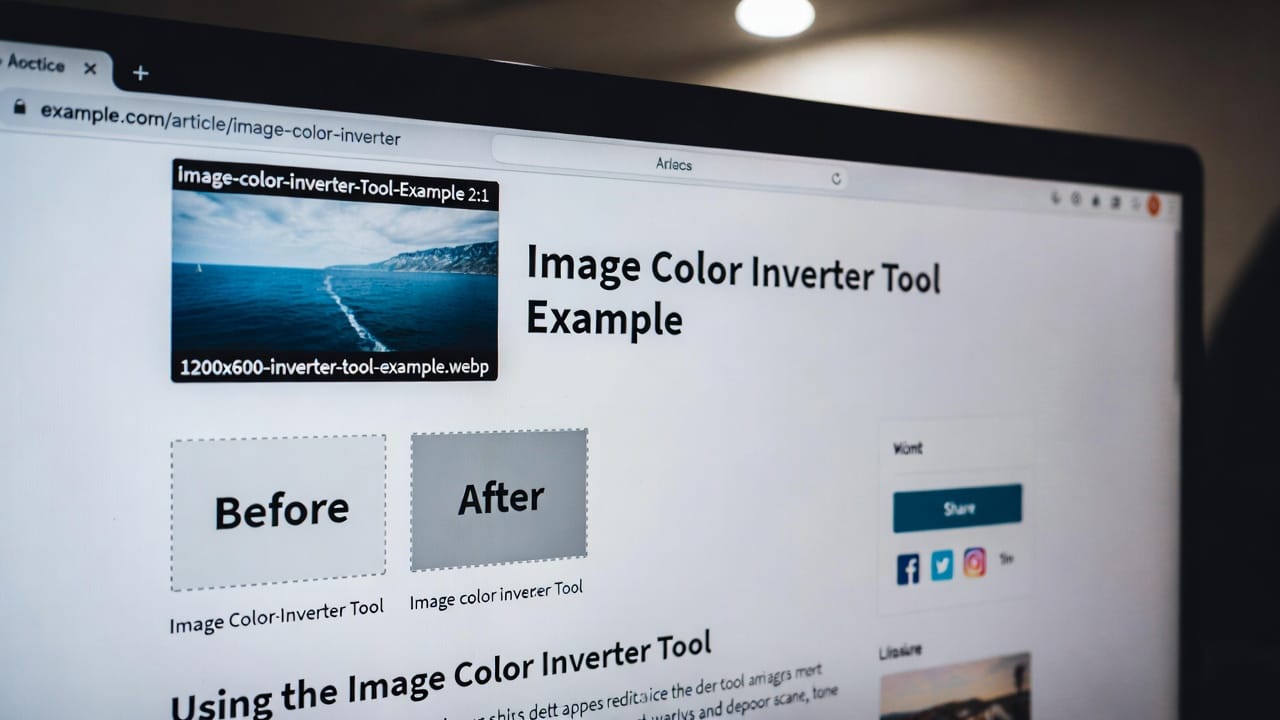
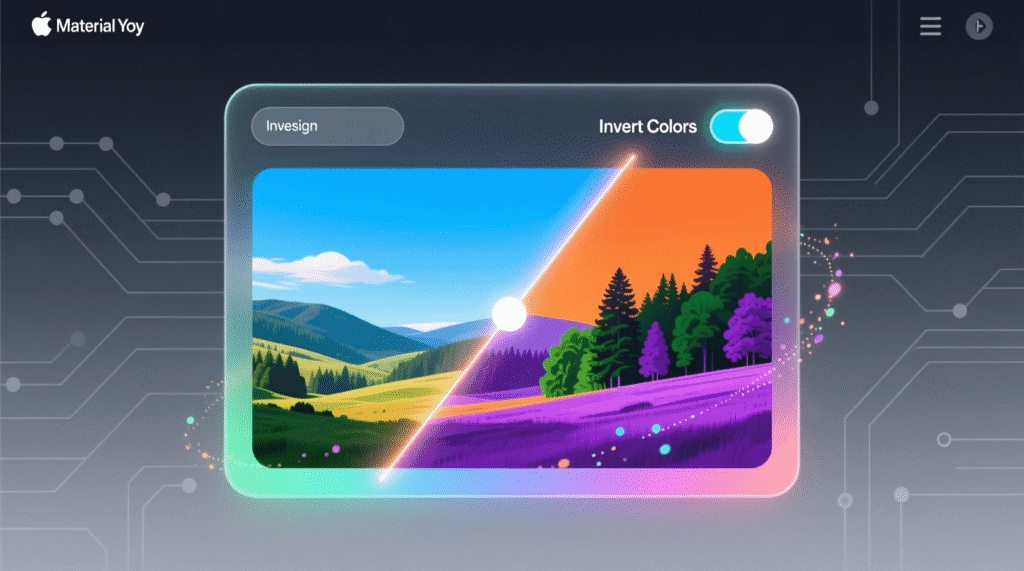
See, like this landscape—normal on one side, inverted on the other. Makes you think twice about what “real” colors even are, right?

Anyway, if you’re wondering how to invert colors in an image, there are a bunch of ways. In Photoshop, it’s just Image > Adjustments > Invert, or Ctrl+I… but honestly, who has Photoshop open all the time? I don’t, unless I’m really editing something serious.

Online tools are way easier for quick stuff. You just upload your JPG or PNG, hit a button, and boom—color inverted image ready to download.

That’s why I like this one tool I’ve been using: the Image Color Inverter  . It’s free, no sign-up nonsense, supports up to 10MB files, and it’s got this “Pro Invert” button that’s literally one click.

But wait, it’s not just inversion. They call it a color fixer too, so you can tweak brightness, contrast, warmth, vibrance… or auto-brighten if your photo looks dull. I uploaded this city shot the other day that was kinda washed out, hit invert first to see the negative version, then played with the sliders to enhance the original—made the colors pop without overdoing it.

How to Invert Colors in a Picture on iPhone & Android

cyberlink.com

How to Invert Colors in a Picture on iPhone & Android

Something like that, before and after inversion. Trippy, huh?

And there’s a compare mode—side by side, or slider, or toggle—so you can see exactly what changed. Helpful when you’re second-guessing if the inversion looks cool or just weird.

I think that’s why inverting colors is still a thing in 2025… it’s great for art, memes, or even fixing accessibility stuff, like higher contrast for certain visuals.

Color Inverter - Invert Image Colors Online for Free | Fotor

fotor.com

Color Inverter – Invert Image Colors Online for Free | Fotor

Portrait like this turns into a total negative vibe—almost eerie.

Sometimes I invert just part of an image, but with this tool, it’s full invert or manual tweaks. If you want partial, maybe layer it in another editor, but for straight-up how to invert photo colors online, this works.

There are other ways too, like in Canva or free apps, but I keep going back to simple drag-and-drop ones. No ads popping up, processes fast.

LunaPic | Free Online Photo Editor | Negative

lunapic.com

LunaPic | Free Online Photo Editor | Negative

Negative effects can be artistic too, like this neon-ish one.

Or even salt drawings that reveal stuff when inverted—saw some wild art like that.

My Salt Drawings Reveal Their True Colors When Inverted | Bored Panda

boredpanda.com

My Salt Drawings Reveal Their True Colors When Inverted | Bored Panda

Cool, right? Makes you want to try it on random photos.

Anyway, if you’re looking for an easy image color inverter with some enhancement options thrown in, check out that Ghostern tool. It’s got the pro invert, color correction sliders, all that.

I don’t know, sometimes inverting makes a photo better, sometimes worse… but experimenting is half the fun. Like, why not flip your selfie and see if it looks more mysterious?

How To Invert Colors On A Photo: Precise Guide | Skylum How-to

skylum.com

How To Invert Colors On A Photo: Precise Guide | Skylum How-to

Yeah, stuff like that. Ends up looking surreal.

Think I’ll try it on some old pics later… or maybe not, some memories are better left normal.

1. Basic Usage Questions

Q: What does the Image Color Inverter do? A: Our tool instantly inverts colors in your image, transforming light areas to dark and dark areas to light while preserving the original brightness and contrast.

Q: How do I use the Image Color Inverter? A: Simply upload your image, click the “Invert Colors” button, and download the result. No registration or software installation required.

Q: What image formats are supported? A: We support all common image formats including JPG, PNG, WEBP, GIF, and BMP with a maximum file size of 10MB.

Q: Is there a limit to the image size I can upload? A: You can upload images up to 10MB in size, which accommodates most high-resolution photos and graphics.

2. Technical Questions

Q: Is there a limit to the image size I can upload? A: You can upload images up to 10MB in size, which accommodates most high-resolution photos and graphics.

Q: Will the quality of my image be affected? A: No, our tool processes your image with minimal quality loss. The original resolution and details are preserved in the inverted version.

Q: Does it work on mobile devices? A: Yes, our Image Color Inverter is fully responsive and works perfectly on smartphones, tablets, and desktop computers.

3. Output Questions

Q: What format will the inverted image be in? A: The inverted image will be provided in the same format as your original image (JPG, PNG, etc.) for maximum compatibility.

Q: Can I download the inverted image? A: Yes, you can download the inverted image with a single click. The download starts automatically once the processing is complete.

Q: Will the quality of my image be affected? A: No, our tool processes your image with minimal quality loss. The original resolution and details are preserved in the inverted version.

4. Privacy & Security Questions

Q: Is my image data stored or shared? A: No, your images are processed in your browser and never stored on our servers. Your privacy and data security are our top priorities.

Q: Is the tool free to use? A: Yes, our Image Color Inverter is completely free with no hidden fees, subscriptions, or limitations on usage.

Q: Do I need to create an account to use it? A: No account registration is required. You can use our tool immediately without providing any personal information.

5. Advanced Usage Questions

Q: Can I invert only certain colors in my image? A: Currently, our tool inverts all colors in your image. For selective color changes, we recommend using our advanced CSS Gradient Generator for specific color manipulations.

Q: Are there any tips for getting the best results? A: For the best color inversion results, use high-contrast images with clear color distinctions. Avoid heavily filtered or already inverted images for best outcomes.

Q: Can I use the inverted image for commercial purposes? A: Yes, you retain full rights to your images after processing. You can use the inverted images for any personal or commercial purpose.

6. Troubleshooting Questions

Q: What if my image doesn’t upload correctly? A: Ensure your image is in a supported format (JPG, PNG, WEBP, GIF, BMP) and under 10MB in size. Try refreshing the page and using a different browser.

Q: Why doesn’t the color inversion look like I expected? A: Color inversion works by mathematically calculating the complement of each color. Some images with unusual color profiles may not invert as dramatically as expected.

7. Comparison Questions

Q: How is this different from other color inverter tools? A: Our tool offers instant processing, no file size limitations, and works entirely in your browser without uploading images to a server, ensuring maximum privacy and speed.

Implementation Tips for SEO

1. Add FAQ Section to Your Tool Page Create a dedicated FAQ section below the tool interface with these questions and answers.

2. Implement Schema Markup Add FAQ Schema markup to your page header to help search engines understand your content better:


Other Tools

thumbnail image of image color inverter
Image Color Inverter ​
aesthetic wallpaper44
Gradient Generator
font or text generator tool thumbnail image
Dark Souls Font Generator
  • All Posts
  • Stories & Guides
Load More

End of Content.